
Connections - grandMA3
Open Edit -> Connections… and select grandMA3.
Bidirectional Live Link between Samba cues and grandMA3 timecode markers over OSC. Requires the Samba Live Link plugin on the desk or onPC. See grandMA3 Live Link.
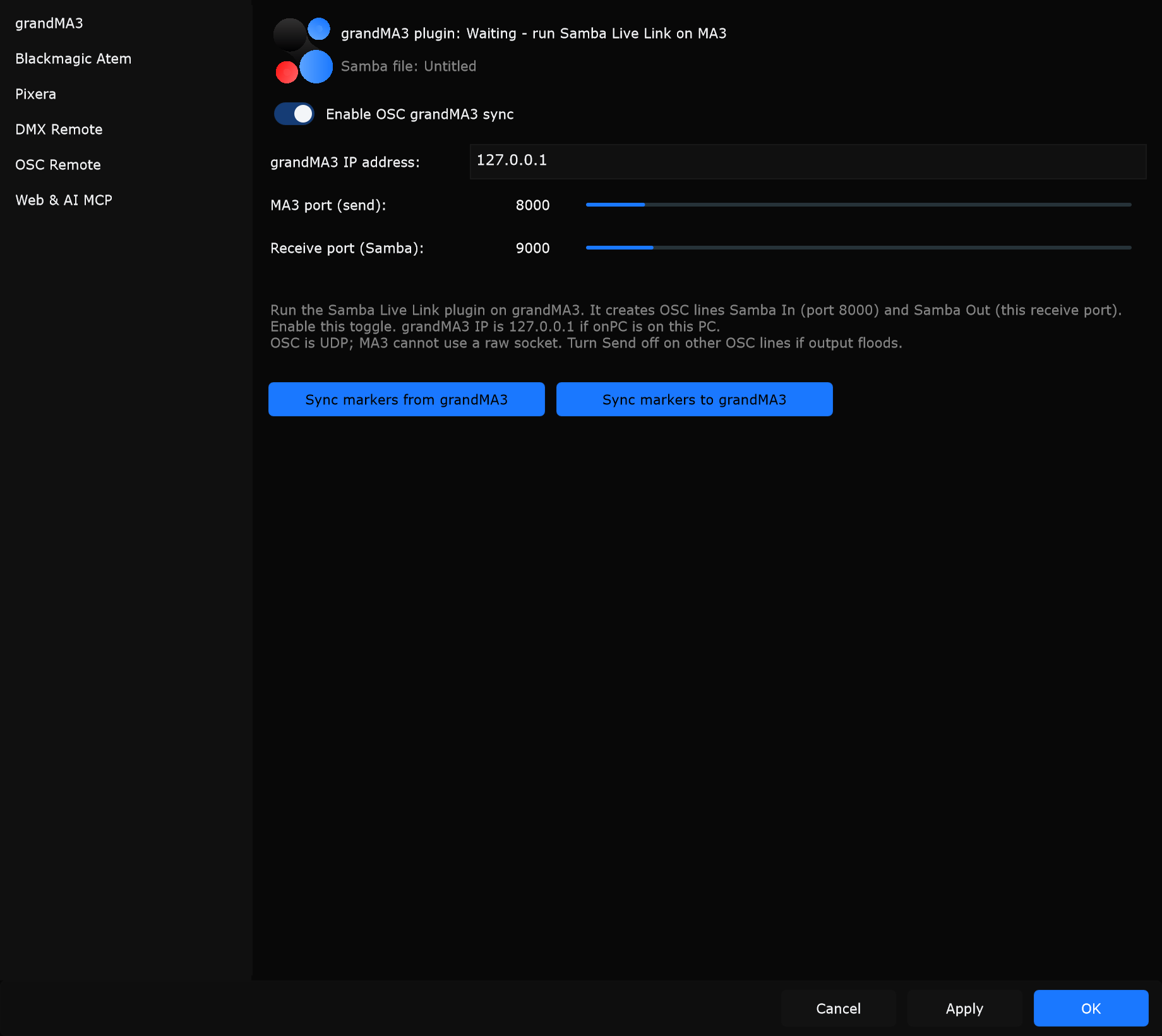
Status
Section titled “Status”| Status | Meaning |
|---|---|
| grandMA3 plugin: OSC off | Sync disabled, or OSC not running |
| grandMA3 plugin: Waiting - run Samba Live Link on MA3 | Samba is listening; start the plugin on MA3 |
| grandMA3 plugin: Connected | Plugin hello received recently |
Samba file: current project file name (confirms which show is linked).
Controls
Section titled “Controls”Enable OSC grandMA3 sync
Section titled “Enable OSC grandMA3 sync”Turns grandMA3 OSC Live Link on or off.
When to use: On when the Live Link plugin is installed and you want live cue sync. Off for file-only grandMA3 export from Import and export.
grandMA3 IP address
Section titled “grandMA3 IP address”IP of the console or onPC.
When to use: 127.0.0.1 when onPC runs on this computer. Console LAN IP on a network.
MA3 port (send)
Section titled “MA3 port (send)”UDP port Samba sends to (plugin Samba In, typically 8000).
When to use: Keep 8000 unless you changed the plugin OSC lines.
Receive port (Samba)
Section titled “Receive port (Samba)”UDP port Samba listens on (plugin Samba Out, typically 9000).
When to use: Keep 9000 unless you changed the plugin OSC lines.
Sync markers from grandMA3
Section titled “Sync markers from grandMA3”One-shot pull of markers from MA3 into Samba.
When to use: After editing many markers on the desk and you want Samba to match in one step.
Sync markers to grandMA3
Section titled “Sync markers to grandMA3”One-shot push of Samba markers to MA3.
When to use: After building the cuelist in Samba and you want a full desk update.
Hint (on page)
Section titled “Hint (on page)”Run the Samba Live Link plugin on grandMA3. It creates OSC lines Samba In (port 8000) and Samba Out (this receive port). Enable the toggle. grandMA3 IP is 127.0.0.1 if onPC is on this PC. OSC is UDP; MA3 cannot use a raw socket. Turn Send off on other OSC lines if output floods.
Typical setup
Section titled “Typical setup”- Install and start Live Link on grandMA3 (Live Link).
- Enable Enable OSC grandMA3 sync.
- Set grandMA3 IP address.
- Keep send 8000 and receive 9000 unless you changed the plugin.
- Apply. Status should move from Waiting to Connected.