
Video Preview
Open Edit -> Preferences… and select Video Preview.
Configures what Samba draws on top of the Video preview panel. Capture backends are on Recording, not here.
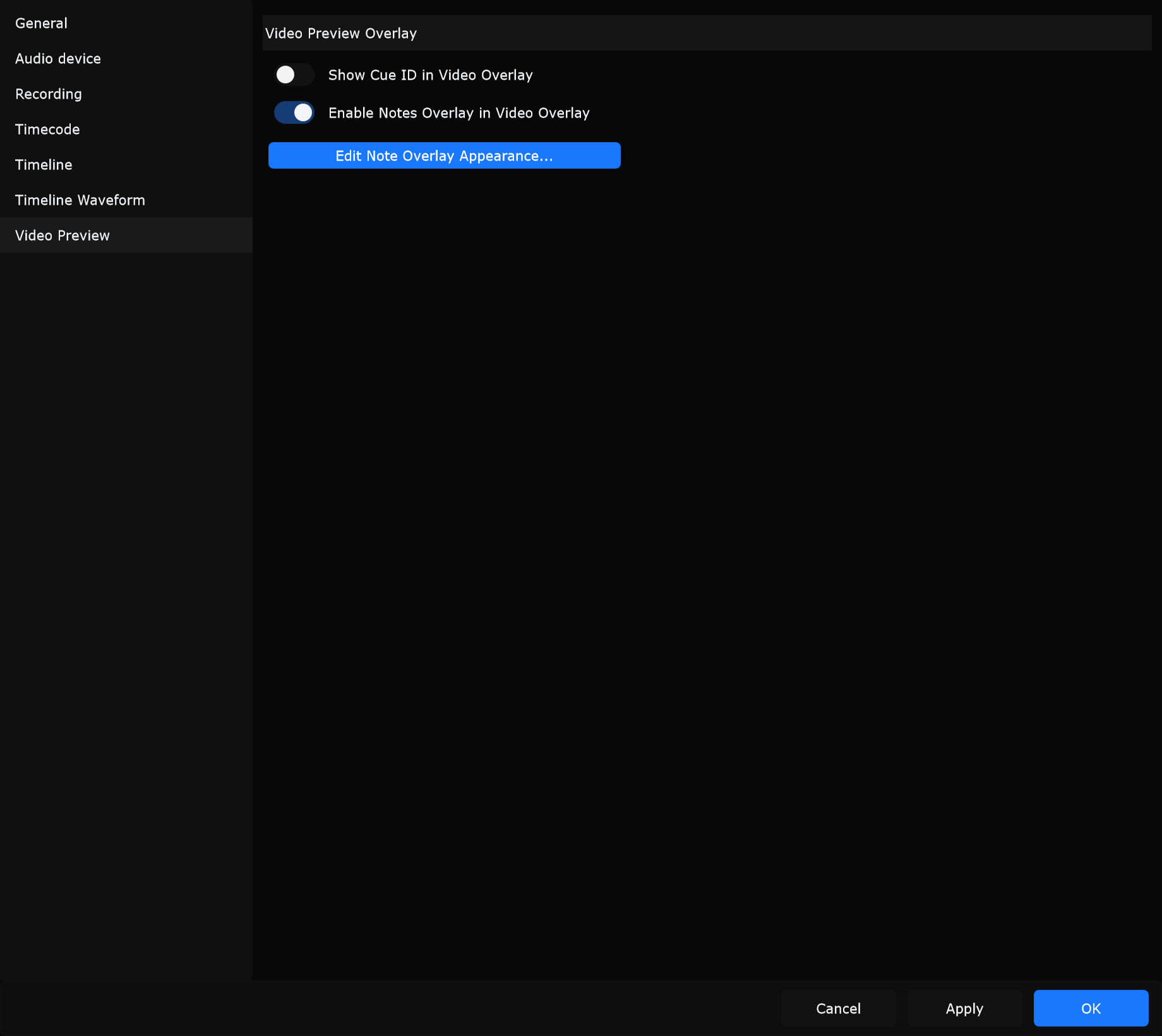
Video Preview Overlay
Section titled “Video Preview Overlay”Show Cue ID in Video Overlay
Section titled “Show Cue ID in Video Overlay”When enabled, the current cue’s ID is drawn in the video overlay.
When to use: Show cue numbers on a director confidence monitor so they match grandMA3 or cuelist IDs. Turn off for a clean client or IMAG feed.
Enable Notes Overlay in Video Overlay
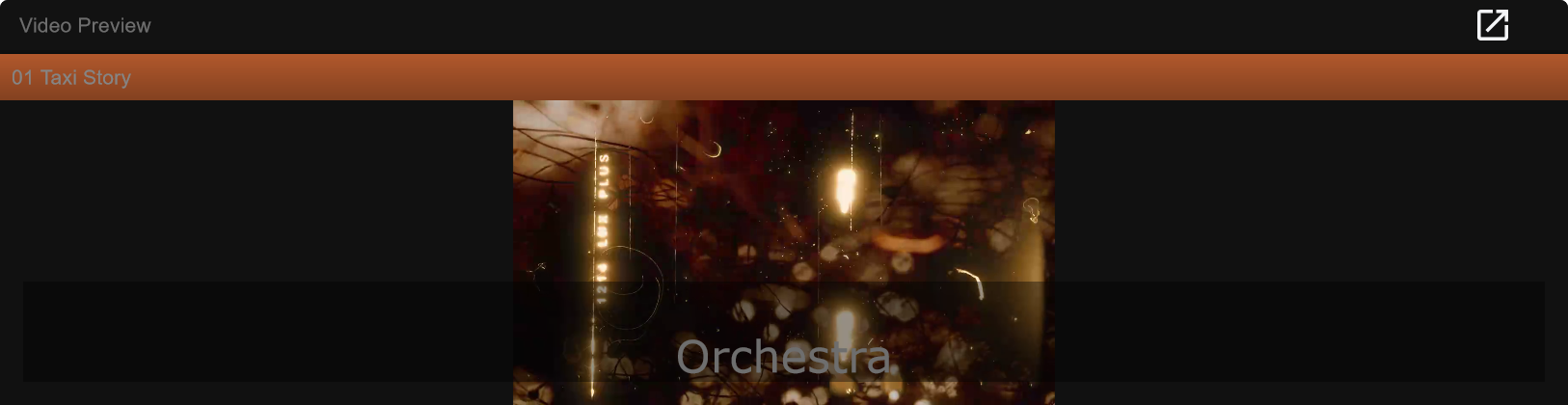
Section titled “Enable Notes Overlay in Video Overlay”When enabled, cue notes appear on the video preview.
When to use: Enable for rehearsal and programming so notes travel with picture. Disable for clean playback outputs when notes stay in the cuelist only.
Edit Note Overlay Appearance…
Section titled “Edit Note Overlay Appearance…”Opens the dedicated Notes overlay dialog (font, alignment, colours, reduce-to-fit, and related toggles).
When to use: Open this when notes are hard to read on stage video and you need a larger font, background plate, or different corner.
You can also run Edit Note Overlay Appearance… from Tools when that command is available.
Related
Section titled “Related”- Notes overlay
- Cues
- Recording
- Audio device (Lock video preview to playhead / timecode)
- Preferences overview