
Cues
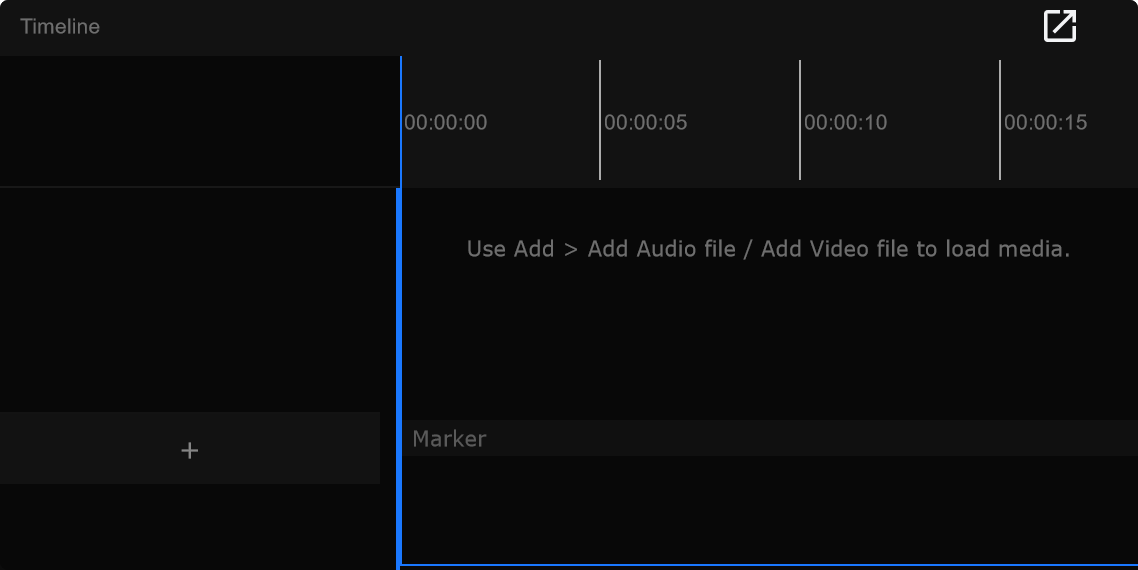
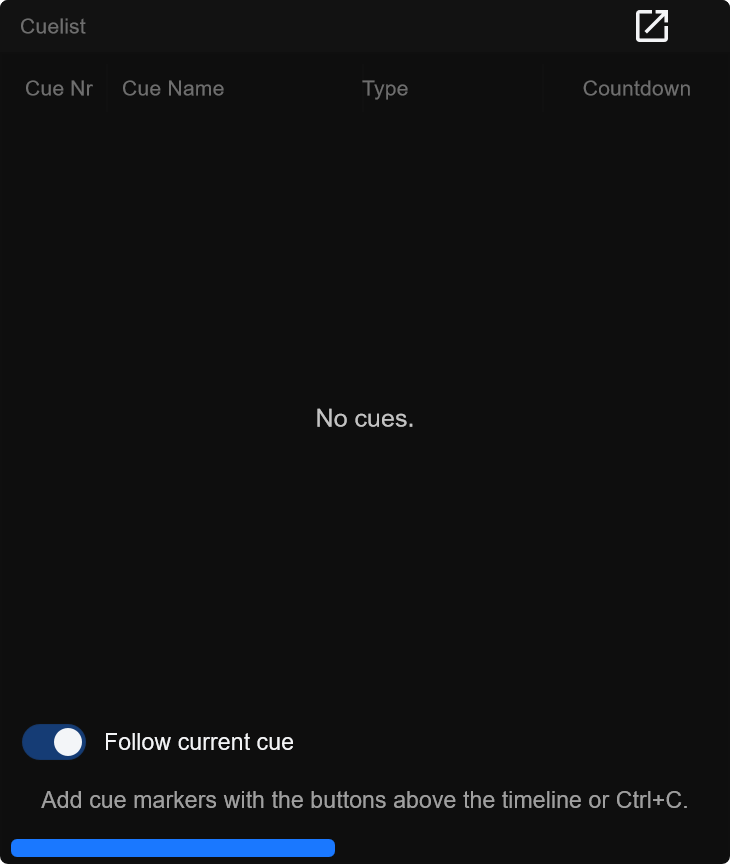
Cues are markers on the current track: time, name, type, notes, command, and fade. They appear on the timeline and in the cuelist.

Cue types bar
Section titled “Cue types bar”The bar above the programming area sets the category for new cues (and filtering / colour).

Marker type
Section titled “Marker type”
Default-style marker category for general hits.
When to use: Musical hits, section starts, or generic marks that are not pyro or lights.
Pyro type
Section titled “Pyro type”
Category for pyro / SFX-style cues (name and colour are project-editable).
When to use: Fire / effect looks you want coloured and filtered separately from lights.
Lights type
Section titled “Lights type”
Category for lighting looks.
When to use: Desk looks that should stay visually distinct next to pyro markers.
Active type for new cues
Section titled “Active type for new cues”Click a type pill to make it active before you add.
When to use: Switch to Pyro before a burst of effect marks so every Ctrl+C lands in the right category.
Cue Categories… (right-click)
Section titled “Cue Categories… (right-click)”Right-click a type pill to open Cue Categories… for that row: name, colour, visible, locked, export flags.
When to use: Rename colours for a tour package, or lock a category so operators cannot casually edit those cues.
Categories are project data - they travel with the show and matter for exports and Live Link colour / grouping.
Add and place cues
Section titled “Add and place cues”Add Cue (Ctrl+C)
Section titled “Add Cue (Ctrl+C)”Ctrl+C (Cmd+C on Mac) adds a cue at the playhead using the active type.
When to use: Mark while listening - park the playhead, press Ctrl+C, keep going.
Drag on timeline
Section titled “Drag on timeline”Drag the marker to move time.
When to use: Fine-tune after a rough add.
Delete
Section titled “Delete”Delete or Backspace with a selection.
When to use: Remove a mistaken double-mark.
Previous / next cue
Section titled “Previous / next cue”Up / Down (also Alt+Left / Alt+Right).
When to use: Step through marks without the mouse during rehearsal.
Label on creation
Section titled “Label on creation”Edit -> Preferences… -> Timeline:
- Label Cues on Creation - prompt for a name when adding
- Pause While Labelling - pause transport while you type
When to use: Turn labelling on when every cue needs a desk-friendly name on the first press.
Numbering (1.1 style)
Section titled “Numbering (1.1 style)”Cue numbers follow grandMA3-style 1 / 1.1 / 1.01:
- Insert between 1 and 2 -> 1.1
- Further inserts -> 1.01, 1.001, …
When to use: Add a late look between two existing desk numbers without renumbering the whole list.
Sequential Cue IDs from selection…
Section titled “Sequential Cue IDs from selection…”Cue context menu: after confirmation, renumber the selection to 1, 2, 3, …. With Live Link active, grandMA3 cue numbers can update so both sides stay aligned.
When to use: Clean integer list before export or a tidy desk rebuild.
Cuelist
Section titled “Cuelist”Full editor for the current track - not only a readout.

Cue Nr
Section titled “Cue Nr”Cue number / ID text (supports 1.1 style).
When to use: Match desk numbering by hand when needed.
Cue Name
Section titled “Cue Name”Label shown in list and often on timeline.
When to use: Operator-facing names (“Verse lights”, “Confetti”).
Category column.
When to use: Bulk-change category from the context menu after a mistyped type.
Drum AI
Section titled “Drum AI”Drum-related helpers when that workflow is in use.
When to use: After beat / drum analysis passes that fill helper fields.
Countdown
Section titled “Countdown”Visual countdown into the cue (length from Preferences -> General).
When to use: Give the operator a fill bar before pyro / hard hits.
Cue time on the track.
When to use: Type an exact time when drag is too coarse.
Cue Notes
Section titled “Cue Notes”Notes field on the cue.
When to use: Text that must travel with the cue / Live Link marker (not freeform review comments).
Command
Section titled “Command”Command string (desk / Live Link).
When to use: Extra command payload the desk expects on that cue.
Cue Fade
Section titled “Cue Fade”Fade text.
When to use: Document or pass fade info with the cue.
Edit cells in place where supported. Drag header edges to resize; header context menu toggles column visibility / order.
Follow current cue
Section titled “Follow current cue”Toggle at the bottom of the cuelist - scrolls to the cue matching playback / playhead.
When to use: On during show; off while editing far from the playhead.
Show regions
Section titled “Show regions”Toggles region rows when the show uses regions.
When to use: Region-based programming views without leaving the cuelist.
Context menu (selection)
Section titled “Context menu (selection)”Useful items: change Cue Category, lock / unlock category, Move Cue(s) To Playhead / To… / By…, select same type / name / all above or below, Sequential Cue IDs…, Re-Label….
When to use: Batch-fix a selection after a timing pass.
Copy cues in a time range
Section titled “Copy cues in a time range”- Make a time selection on the timeline
- Copy cues in time selection (default Alt+C)
- Move the playhead
- Paste cues at playhead (default Alt+V)
When to use: Duplicate a verse pattern onto the next song section.
Remap in Edit -> Shortcuts… if needed.
Live Link
Section titled “Live Link”With grandMA3 Live Link on, time, name, notes, command, fade, add, and delete sync both ways. Each Samba cue keeps a stable id, so rename / move / renumber on the desk stays linked to the same Samba cue.
When to use: Bidirectional programming with the desk on the same track - keep Live Link on while editing that song.
On a cloud project, cue edits save to the server (Save to Cloud, or auto-sync a few seconds after structural changes). Media files are not uploaded. See Cloud projects.