
Connections - Web & AI MCP
Open Edit -> Connections… and select Web & AI MCP (exact sidebar name).
Covers the phone/tablet web remote and the local MCP endpoint for AI agents.
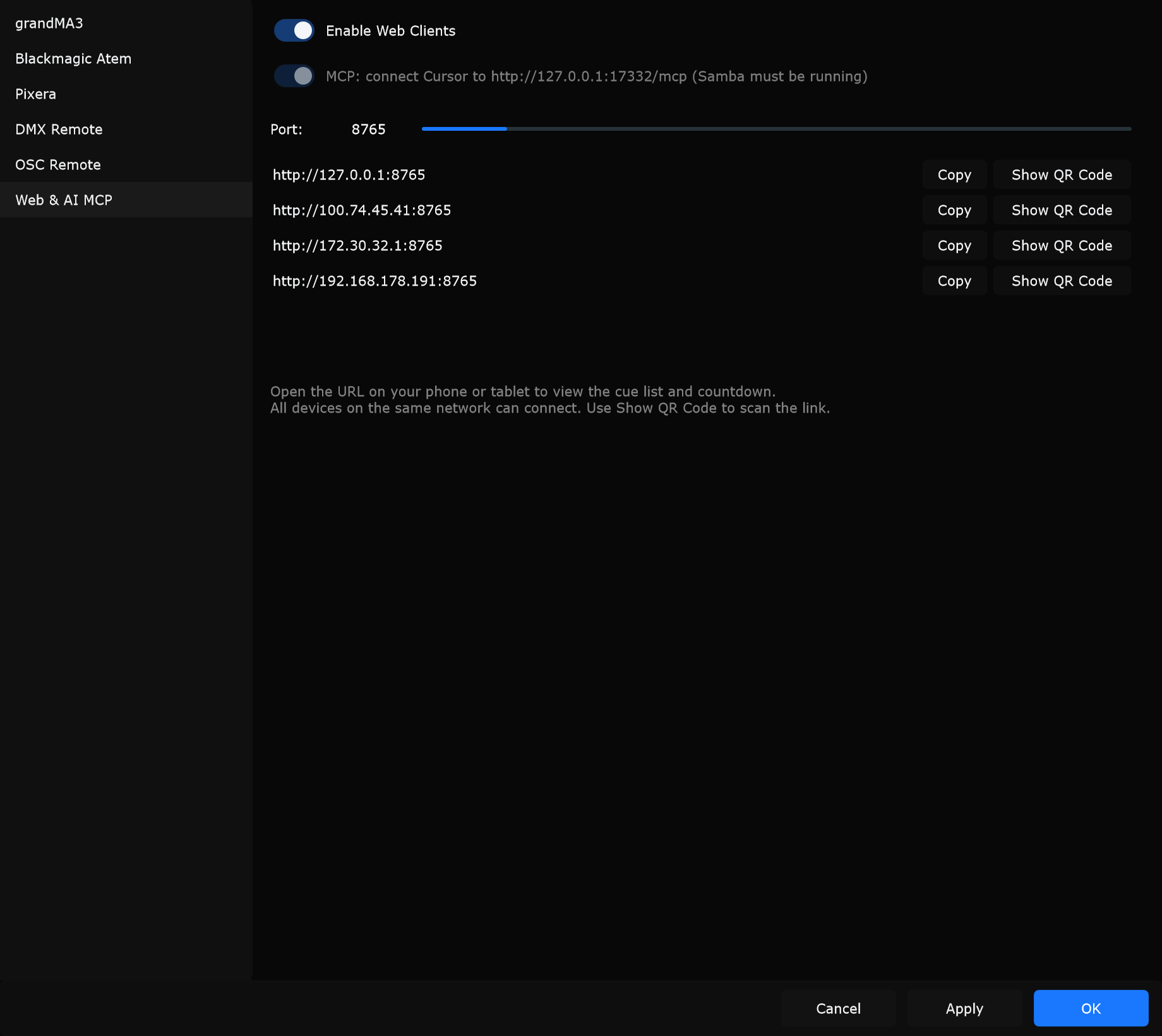
Controls
Section titled “Controls”Enable Web Clients
Section titled “Enable Web Clients”Starts the local web server that serves the cue list / countdown remote.
When to use: Enable when operators need a phone or tablet remote on the LAN. Leave off when you do not want the HTTP port open.
MCP toggle
Section titled “MCP toggle”Label text:
MCP: connect Cursor to http://127.0.0.1:17332/mcp (Samba must be running)
While Samba is open, MCP is available at:
http://127.0.0.1:17332/mcp
Tooltip: While Samba is open, Cursor connects to the localhost MCP URL. Optional --samba-mcp-stdio is only for hosts that spawn Samba (for example Claude Desktop).
When to use: Point Cursor (or a compatible MCP host) at that URL during a normal GUI Samba session. Samba must already be running.
HTTP port for the web remote.
When to use: Change if another service uses the default port, or if firewall rules require a fixed port.
URL list
Section titled “URL list”Lists reachable URLs for this machine on the network. Each row has:
| Control | Action |
|---|---|
| Copy | Copy that URL to the clipboard |
| Show QR Code | Open a QR dialog for that URL |
When to use: Copy for a laptop browser, or show QR for a phone/tablet camera.
Hint (on page)
Section titled “Hint (on page)”Open the URL on your phone or tablet to view the cue list and countdown. All devices on the same network can connect. Use Show QR Code to scan the link.
Phone / tablet remote
Section titled “Phone / tablet remote”- Enable Enable Web Clients.
- Set Port if needed.
- Apply.
- Copy a listed URL, or Show QR Code, then open it on a device on the same network.
The remote shows cue list and countdown for the running show. Keep Samba running; the remote is not a standalone server after Samba quits.
Typical MCP setup
Section titled “Typical MCP setup”- Start Samba (GUI).
- Open this Connections page and note the MCP URL.
- In Cursor, connect an MCP client to
http://127.0.0.1:17332/mcp.