
Video and preview
The Video Preview panel shows picture for video, image, and camera layers while you program and play the timeline. Overlays can burn cue IDs and notes onto that picture for operators or a director feed.
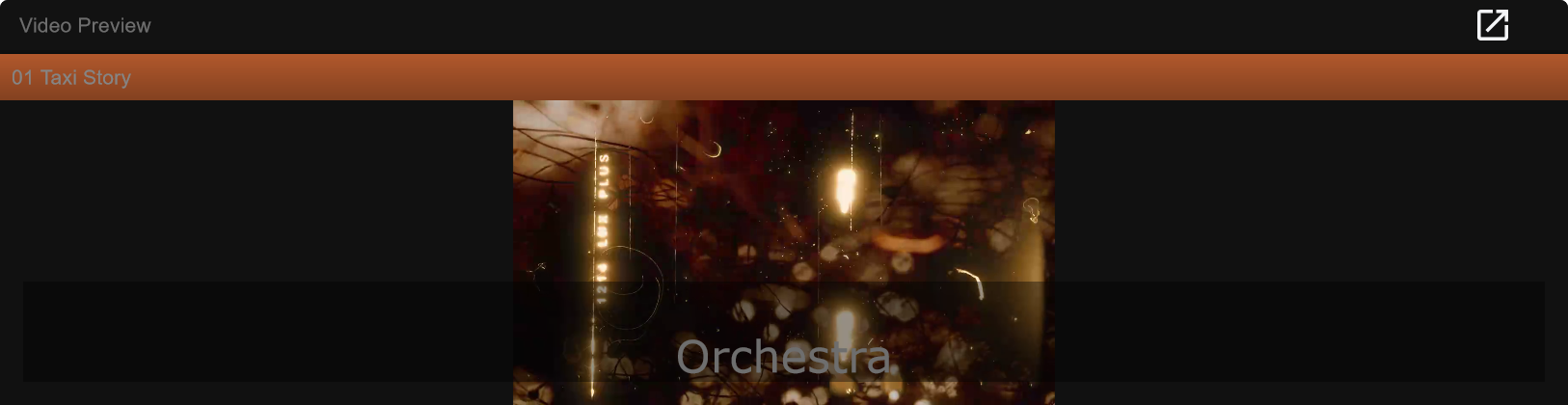
Show the Video Preview panel
Section titled “Show the Video Preview panel”View -> Video Preview -> Show Video Preview Panel
Or use the matching item under View so the panel is ticked. Hide it when you only need audio and the cuelist.
Layouts (Default, Editing, Show) place the panel differently; drag dock tabs and splitters as needed. See Panels and layouts.
Layer visibility
Section titled “Layer visibility”View -> Video Preview also lists which layer kinds contribute to the preview stack:
- Audio Layer
- Video Layer
- Image Layer
- Camera Layer
- Record Audio Layer
- Record Video Layer
Turn kinds off when a busy track mixes sources and you only want, for example, the film plate without camera PIP, or camera without stills. Toggles do not delete layers from the track - they only change what the preview shows.
Lock to playhead / timecode
Section titled “Lock to playhead / timecode”Picture can stay locked 1:1 with the timeline while transport runs.
Edit -> Preferences… -> Audio device -> Lock video preview to playhead / timecode (1:1 with timeline when playing)
| State | Behaviour |
|---|---|
| On | Preview stays in step with the playhead (and followed timecode) while playing - preferred for programming and rehearsal |
| Off | Preview can run slightly decoupled - useful only for troubleshooting free-run vs lock behaviour |
This control lives on the Audio device page because preview lock is tied to the playback engine clock, not to overlay cosmetics.
Details: Audio device.
Overlays (Video Preview preferences)
Section titled “Overlays (Video Preview preferences)”What Samba draws on top of the preview is configured separately:
Edit -> Preferences… -> Video Preview
Section banner: Video Preview Overlay.
| Control | Purpose |
|---|---|
| Show Cue ID in Video Overlay | Draw the current cue’s ID on picture |
| Enable Notes Overlay in Video Overlay | Draw cue notes (and related overlay content) |
| Edit Note Overlay Appearance… | Font size, alignment, colours, background plate, reduce-to-fit |
Use Cue ID + notes for rehearsal / confidence monitors. Turn both off for a clean client or IMAG feed.
Appearance dialog highlights:
| Option | Typical use |
|---|---|
| Show background | Readability on busy video |
| Alignment | Bottom center for director monitors; corner for less intrusion |
| Text colour | Cue Type colour, White, or Black |
| Reduce font size to fit | Long notes still fit in the overlay area |
Full table: Video Preview preferences.
Preview vs recording capture
Section titled “Preview vs recording capture”| Topic | Where |
|---|---|
| What you see in the Video Preview panel | This page + View menu |
| Overlay cosmetics | Preferences -> Video Preview |
| Lock to playhead | Preferences -> Audio device |
| Camera / DeckLink / NDI capture defaults for recording | Preferences -> Recording |
Recording backends are not configured on the Video Preview preferences page.
Typical setups
Section titled “Typical setups”Programming with picture and notes
Section titled “Programming with picture and notes”- Show Video Preview panel
- Enable lock to playhead
- Enable notes overlay (and Cue ID if operators match desk cue numbers)
- Play / scrub - picture and overlays follow the timeline
Clean playback monitor
Section titled “Clean playback monitor”- Keep Video Preview visible if needed for confidence
- Disable notes and Cue ID overlays
- Leave lock on so picture matches the show clock
Multi-layer track
Section titled “Multi-layer track”- Open View -> Video Preview
- Disable layer kinds you do not want in the stack
- Keep lock on while checking sync between audio bed and film
Related
Section titled “Related”- Panels and layouts
- Video Preview preferences
- Audio device - lock to playhead
- Cues - IDs and notes that feed overlays
- Playback