
Recording
Open Edit -> Preferences… and select Recording.
Sets Recording defaults for video capture (and optional separate audio). Timeline playback output is on Audio device.
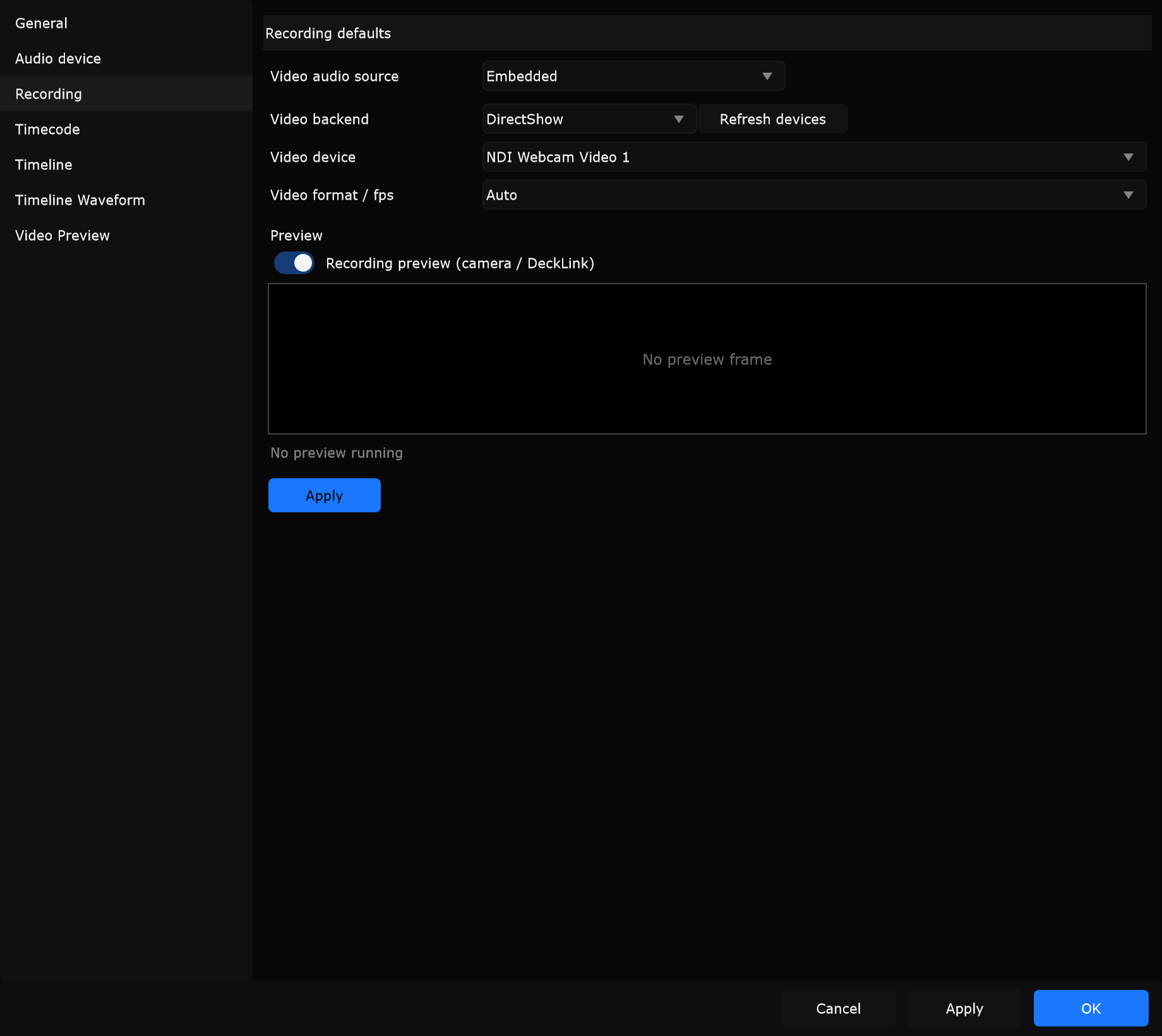
Video audio source
Section titled “Video audio source”Video audio source
Section titled “Video audio source”| Option | What it does |
|---|---|
| Embedded | Record audio that arrives with the video path |
| Separate audio device | Picture from one source, audio from another input |
When to use: Embedded for a camera or DeckLink feed with usable soundtrack. Separate when the camera is silent and you need a clean board feed from a mixer.
Audio input device
Section titled “Audio input device”Shown when source is Separate audio device. Chooses which capture device supplies recording audio.
When to use: Select the USB mixer or interface feeding the show L/R while DeckLink takes SDI picture.
Audio input channel
Section titled “Audio input channel”Shown with separate audio. Chooses which input on that device to record.
When to use: Pick the channel that carries program stereo (or the mono talkback feed you want on the take).
Video backend
Section titled “Video backend”Video backend
Section titled “Video backend”| Backend | Platform | When to use |
|---|---|---|
| DirectShow | Windows | Webcams and OS-visible USB capture devices |
| AVFoundation | macOS | Built-in / macOS camera and capture devices |
| Blackmagic DeckLink | Both (with hardware) | SDI / HDMI ingest from a DeckLink card |
| NDI | Both | Soft sources from other machines on the LAN |
| Spout | Windows | Capture from another app publishing a Spout sender |
| Syphon | macOS | Capture from another app publishing a Syphon server |
When to use: DeckLink for camera ISO from the vision rack. NDI for a media-server confidence feed over the network. Spout / Syphon for GPU texture share from a local viz app. DirectShow / AVFoundation for a quick USB webcam rehearsal record.
Video device / NDI source / Spout sender / Syphon server
Section titled “Video device / NDI source / Spout sender / Syphon server”Device picker label changes with the backend: Video device, NDI source, Spout sender, or Syphon server. Pick a listed item, or type a name when NDI/Spout-style scanning has not listed it yet.
When to use: After starting an NDI sender on the media PC, choose that source name here before recording.
Video format / fps
Section titled “Video format / fps”Capture mode: Auto, 1080p25, 1080p30, 2160p25 (as offered).
When to use: Leave Auto for casual webcam work. Lock 1080p25 when the show package and DeckLink mode are fixed at 25 fps.
Refresh devices
Section titled “Refresh devices”Rescans cameras, NDI sources, Spout/Syphon senders, and related lists.
When to use: Click after plugging a camera, enabling a DeckLink input, or starting an NDI/Spout sender mid-session.
DeckLink options
Section titled “DeckLink options”Visible when Blackmagic DeckLink is selected (and DeckLink support is in the build). Match these to Desktop Video and the signal on the cable.
Video connection
Section titled “Video connection”Physical video input path (SDI, HDMI, and so on, as offered by the card).
When to use: Select the SDI connector that actually carries camera 1 into the DeckLink card.
Audio connection
Section titled “Audio connection”Embedded audio connection on the DeckLink path.
When to use: Keep aligned with the card’s embedded audio when you use Embedded video audio source.
Video mode / format mode from the card.
When to use: Match the incoming signal (for example 1080i50 / 1080p25) so preview is not black or stalled.
Pixel format
Section titled “Pixel format”8-bit YUV, 10-bit YUV, or 8-bit BGRA.
When to use: Prefer 8-bit YUV for typical show ingest. Use 10-bit when the pipeline and disk budget require it.
Allow 10-bit (Auto mode)
Section titled “Allow 10-bit (Auto mode)”Permits 10-bit when mode selection is automatic.
When to use: Enable if Auto should be allowed to negotiate 10-bit with the source; disable to force 8-bit behaviour.
Color space
Section titled “Color space”Default, Rec. 601, Rec. 709, Rec. 2020 PQ.
When to use: Set Rec. 709 for standard HD stage camera feeds so colour matches the rest of the show package.
Color range
Section titled “Color range”Default, Partial, Full.
When to use: Match the source range so blacks are not crushed or lifted on the recording preview.
Channel layout
Section titled “Channel layout”None, 2ch, 2.1ch, 4.0ch, 4.1ch, 5.1ch, 7.1ch.
When to use: Choose 2ch for stereo embedded program; use multichannel layouts only when the DeckLink feed carries them.
Swap FC and LFE
Section titled “Swap FC and LFE”Remaps front-centre and LFE when the layout includes those channels.
When to use: Enable if the console or camera embedder swaps FC/LFE relative to what Samba expects.
Use buffering
Section titled “Use buffering”Buffers capture for more stable ingest on some setups (at the cost of a little latency).
When to use: Turn on if DeckLink frames drop under load; leave off when you need the lowest capture latency for live preview.
Preview
Section titled “Preview”Recording preview (camera / DeckLink)
Section titled “Recording preview (camera / DeckLink)”Enables the Preferences preview pane for the selected source. Status line shows scanning, running, or why preview could not start.
When to use: Confirm the correct camera, DeckLink input, NDI name, or Spout sender before starting a real recording from the show UI.
Close Preferences (or stop preview) before an exclusive capture session if the same DeckLink input must be released for recording. Press Apply on this page (or Preferences OK / Apply) to keep defaults.